AI Photo Editing Explained: Generative Fill, Upscaling, Restoration, Phone Tools and When Edits Need Disclosure
A practical guide to AI photo editing: how generative fill, AI masking, neural upscaling and photo restoration work, how Photoshop, Lightroom, Canva, Topaz and phone tools like Magic Editor and Clean Up compare, their limits, and newsroom and commercial rules on disclosing AI edits.
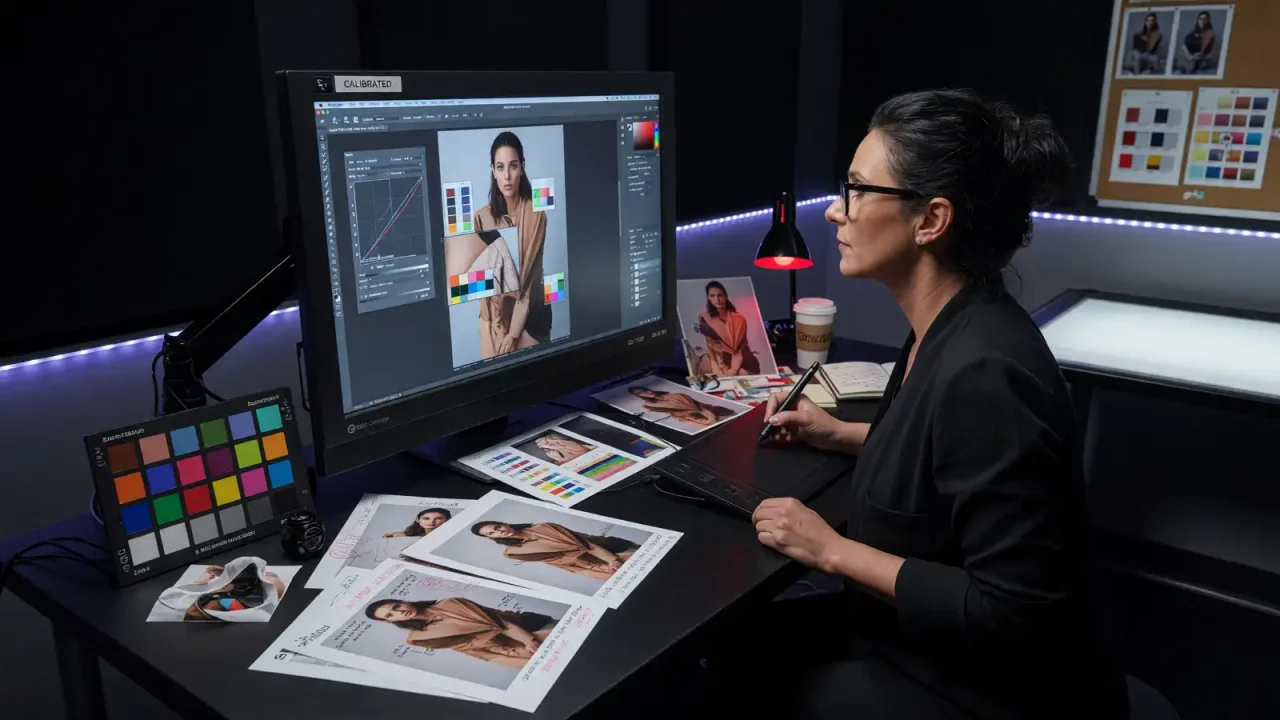
Photo editing has changed more in the past few years than in the previous two decades. Tasks that once took a skilled retoucher an hour, such as removing a distracting object, extending a background or cutting out a subject, now take seconds. AI has also made it possible to add things that were never in the scene, which raises new questions about when an edited photo stops being a record of reality. This guide explains the main AI editing techniques, the tools that offer them, their limits and the rules emerging around disclosure.
The main AI editing techniques
| Technique | What it does | Typical tools |
|---|---|---|
| Generative fill and expand | Replaces or adds content in a selected area, or extends the canvas, matched to the surrounding image | Photoshop (Firefly), Canva Magic Studio, phone editors |
| Object removal | Removes people, wires or blemishes and fills the gap convincingly | Photoshop, Lightroom, Google Magic Eraser, Apple Clean Up |
| AI masking and selection | Selects subjects, skies, people or backgrounds automatically | Lightroom, Photoshop, Capture One and others |
| Neural upscaling | Increases resolution while inferring plausible detail | Topaz Gigapixel, Photoshop Super Resolution, Magnific |
| Restoration | Repairs scratches, fading and damage, and sharpens faces in old photos | Restoration apps and editor plug-ins |
| Relighting and repositioning | Changes lighting direction or moves subjects | Google Magic Editor and desktop editors |
Generative fill: what it can and cannot do
Generative fill lets you select part of an image, optionally type a description, and have a model generate new content that matches the lighting, perspective and texture around it. Adobe introduced Generative Fill and Generative Expand in Photoshop in 2023, powered by its Firefly models. Adobe says Firefly is trained on licensed content such as Adobe Stock and on public-domain material, which is why many commercial users prefer it; we compare it with other image platforms in Nano Banana, ChatGPT Images 2.5 or Adobe Firefly.
Generative fill works best for backgrounds, textures and natural elements such as sky, grass and water, and for removing objects against simple backgrounds. It struggles with text, hands, faces at close range, repeating patterns and anything that has to match precisely, such as a product’s real logo. Results also vary between attempts, so most workflows involve generating several options and choosing one.
Masking and selection
The least glamorous AI feature may be the most useful. Automatic subject, sky and background selection relies on segmentation models, a field that advanced rapidly with general models such as Meta’s Segment Anything. Masks that once required careful manual work can be created in a click, then refined, which speeds up local adjustments for photographers who never use generative features.
Upscaling and restoration
Neural upscalers do more than enlarge pixels: they infer plausible detail based on what they have learned about textures, faces and edges. Tools such as Topaz Gigapixel offer specialised models for faces, landscapes and text, while “creative” upscalers deliberately add detail that was not in the original, which suits digital art more than documentation.
Restoration tools apply similar ideas to old or damaged photographs, removing scratches, correcting fading and sharpening faces. The results can be moving for family archives, but it is important to remember that reconstructed detail is invented. A restored face may look sharper while no longer matching the person exactly, so keep the original scan and label restored versions.
Editing on phones
Much AI editing now happens on phones. Google introduced Magic Editor for Google Photos in 2023, letting users move subjects, change the sky and fill gaps generatively, alongside the earlier Magic Eraser. Apple’s Clean Up removes distracting objects in the Photos app, and Samsung offers similar features through Galaxy AI. Smartphone cameras were already applying heavy computational processing, merging exposures and reducing noise, before generative editing arrived, so the line between capture and editing has been blurry for some time.
Choosing tools
| If you | Consider |
|---|---|
| Edit professionally and need precise control | Photoshop and Lightroom, or Capture One for masking |
| Make social graphics and marketing images without design training | Canva Magic Studio |
| Need large prints from small files | A dedicated upscaler such as Topaz Gigapixel |
| Mostly edit on your phone | Built-in tools: Google Photos, Apple Photos or Samsung Gallery |
| Need commercially safe generated content | Tools whose providers document their training data and offer indemnity |
Workflow tips
Work non-destructively: keep generative results on separate layers so you can compare or remove them later, and save the untouched original alongside the edit. Generate several variations and zoom in to check edges, shadows and repeated textures before accepting one, because problems that are invisible at phone size can show up in print. For client work, note which images used generative tools so you can answer questions about disclosure or rights later.
Authenticity and disclosure
As editing becomes more powerful, context determines what is acceptable.
News. The Associated Press says in its generative AI standards that it does not alter any elements of its photos, video or audio, and that it will not transmit AI-generated images suspected or proven to be false depictions of reality. Many news organisations similarly restrict edits to corrections comparable with traditional darkroom adjustments.
Commercial and personal work. Retouching has always been common in advertising and portraiture, but generative changes that alter what a product looks like or what a property includes can mislead. Real estate listings, product photos and before-and-after images deserve particular care, and some platforms and regulators require disclosure.
Provenance. Adobe co-founded the Content Authenticity Initiative, and Content Credentials based on the C2PA standard can record which edits were made with generative AI (Content Credentials). Metadata can be stripped when images are re-uploaded, so it helps but is not a guarantee. We look at the strengths and limits of provenance tools in our guide to AI art authentication.
A practical rule of thumb
| Type of edit | Example | Disclosure |
|---|---|---|
| Corrective | Exposure, colour, crop, dust and blemish removal, masking | Normally not needed |
| Cosmetic retouching | Skin smoothing, removing a stray hair | Follow your field’s norms |
| Generative change to content | Adding or removing people or objects, replacing a sky | Disclose, and avoid entirely in news or evidence |
| Fully generated elements | New backgrounds, products or people | Disclose clearly |
Our analysis
AI has made professional-looking edits accessible to almost everyone, from automatic masking to generative fill on phones. The technology’s limits are now less about quality than about trust: generated details can look convincing while being invented. Corrective edits are standard practice, but changes that alter what happened in a scene should be disclosed, and avoided entirely in journalism. Keeping originals and using Content Credentials where possible are simple habits that protect credibility.